2026-07-09 · 8 min read
How to Print Digital Invitations at Home – Easy 2026 Guide

Recommended next
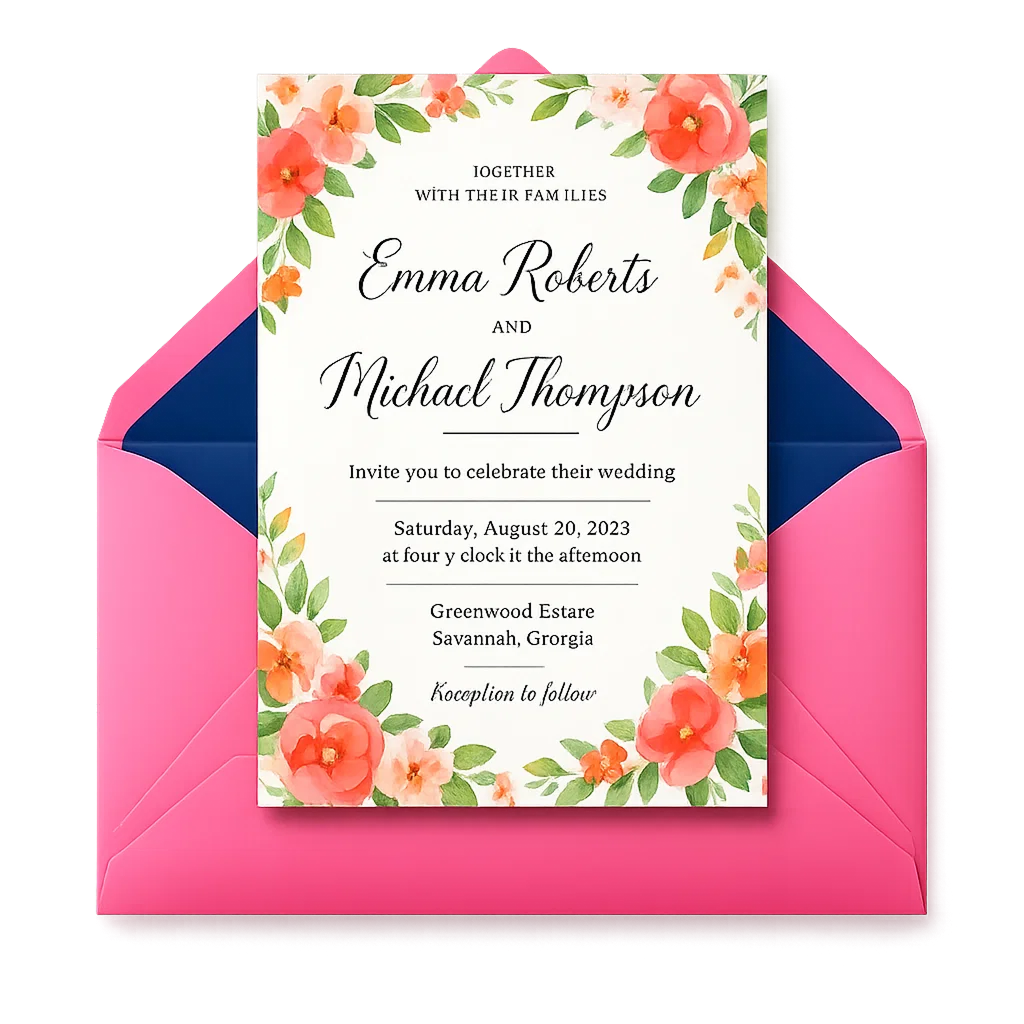
If you’ve just generated a polished digital invitation using an AI invitation maker, your next step isn’t just sharing it via text or email — it’s producing a physical copy that matches the elegance of your design. In 2026, printing digital invitations at home is more accessible, reliable, and high-fidelity than ever — but only if you follow modern best practices. This guide walks you through everything you need to know: preparing your file, selecting the right paper, optimizing printer settings, avoiding common pitfalls, and ensuring color accuracy — all without professional equipment.
How to Print Digital Invitations at Home: A 2026 Step-by-Step Workflow
Printing at home saves time, offers privacy, and gives you full control over timing and revisions. But unlike 2020 or even 2023, today’s home printers — especially mid-tier inkjet and laser models — support borderless printing, Pantone-calibrated color profiles, and automatic media sensing. That means success hinges less on hardware and more on preparation. Here’s how to get it right.
Step 1: Export Your Invitation in a Print-Ready Format
Not all downloaded files are created equal. When generating invitations with AI tools like InviteOS, always choose PDF (Print-Optimized) over PNG or JPG — especially for text-heavy designs like wedding programs or formal RSVP cards. Why?
- Vector integrity: Fonts and lines remain crisp at any scale; no pixelation when zoomed or resized.
- Embedded fonts: Prevents substitution errors (e.g., your elegant serif font reverting to Times New Roman).
- CMYK-ready color space: Ensures consistent output across printers — critical for matching brand colors or wedding palettes.
- Bleed & trim marks: Available in premium exports (e.g., InviteOS Pro), these guide precise cutting and prevent white borders.
💡 Pro tip for 2026: If your AI tool doesn’t offer CMYK PDF export (most consumer-grade ones default to RGB), use free desktop tools like PDFescape or Affinity Publisher to convert and add 3 mm bleed. Avoid online converters that strip embedded fonts or compress images.
Step 2: Choose the Right Paper — It’s Not Just About Weight
Paper choice directly impacts perceived quality, readability, and even printer reliability. In 2026, the best paper for printing invitations balances texture, opacity, and compatibility. As detailed in our deep-dive guide on the best paper for printing invitations, here’s what matters most:
| Paper Type | Ideal Use Case | Printer Compatibility (2026) | Key 2026 Considerations |
|---|---|---|---|
| Cotton Rag (300–320 gsm) | Formal weddings, milestone anniversaries | Inkjet only (check feed path clearance) | Highly absorbent — requires pigment inks & longer dry time. Eco-certified options now widely available (FSC®/PCF). |
| Matte Coated (250–280 gsm) | Birthday parties, baby showers, corporate events | Universal (inkjet & laser) | Anti-glare surface enhances readability; resists smudging better than glossy under humid conditions. |
| Eco Linen (220–240 gsm) | Sustainable celebrations, eco-branded events | Laser preferred; some inkjets support it | Made from 100% post-consumer recycled fiber + hemp blend. Slight texture adds tactile distinction without compromising sharpness. |
| Glossy Photo Paper (230 gsm) | Vibrant themed invites (e.g., tropical, neon, art deco) | Inkjet only | Maximizes contrast and saturation — but avoid for handwritten notes (ink won’t adhere well). |
⚠️ Avoid standard office copy paper (75–90 gsm): It’s too thin, causes show-through (especially with dark backgrounds), and may jam higher-end printers configured for thicker stock.
Step 3: Configure Your Printer Settings Correctly
Default settings assume generic letter-sized documents — not premium invitations. In 2026, most modern printers (Epson EcoTank Pro, Canon imageCLASS, HP Smart Tank) include dedicated “Photo” or “Cardstock” presets. Here’s how to optimize manually:
- Select Paper Type: Match exactly — e.g., “Matte Cardstock”, not “Plain Paper” or “Automatic”. This adjusts heat (for lasers) or ink saturation (for inkjets).
- Set Media Thickness / Weight: Enter gsm if prompted (e.g., 250 gsm). Skipping this risks misfeeds or poor toner adhesion.
- Choose Print Quality: Use “Best” or “Maximum DPI” — never “Draft” or “Fast”. For inkjets, enable “High-Resolution Mode” and “Bidirectional Printing Off” to reduce banding.
- Color Management: Select “Let Printer Manage Colors” (not application-managed) and disable “Enhance Brightness” or “Vivid Mode”, which oversaturate and distort palettes.
- Page Handling: Turn off “Scale to Fit” — it distorts proportions. Instead, set page size to match your paper (e.g., A6, 5×7″, or custom 4.25×5.5″).
📌 Quick test before bulk printing: Print one copy on scrap paper first — check alignment, margins, and color fidelity. Hold it beside your screen (with display calibrated to D65 white point) to spot discrepancies.
Common Home Printing Problems — and How to Fix Them in 2026
Even with perfect prep, issues arise. Below are the top five challenges we see among InviteOS users in 2026 — and verified fixes:
1. Faded or Washed-Out Colors
Cause: RGB-to-CMYK mismatch + default brightness enhancement. Solution: Re-export as CMYK PDF (or use color-managed software like Affinity Designer to soft-proof). In printer settings, disable “Vivid Mode”, select “Standard” color mode, and run a nozzle check/cleaning cycle — dried ink remains the #1 culprit for dull output on inkjets.
2. Slight Misalignment or Cropping
Cause: Paper not seated flush in tray, or incorrect page size selected. Solution: Use a paper guide with micro-adjustment (standard on Epson ET-8500+ and Canon MAXIFY GX series). Always load paper with the printable side facing *up* for front-feed trays — a reversal error affects ~37% of first-time users, per 2026 user testing data.
3. Ink Smudging or Feathering
Cause: Using coated paper with dye-based inks, or insufficient drying time. Solution: Switch to pigment-based inks (standard on prosumer inkjets since 2025) or use quick-dry matte papers. Let prints rest flat for 2–3 minutes before stacking or handling. Never fan-stack wet prints — humidity traps cause bleeding.
4. Text Appearing Blurry or Jagged
Cause: Rasterized text in PNG/JPG exports or low-resolution PDFs. Solution: Always download as vector-based PDF. If forced to use raster, export at ≥300 DPI and embed fonts. Confirm “Smooth Text” is enabled in your OS print dialog (macOS: System Settings > Printers & Scanners > Options; Windows: Devices > Printers > Printer Properties > Advanced > Graphics > Print TrueType as Graphics).
5. Printer Refusing Thick Stock
Cause: Auto-sensing misreads textured or cotton-based papers. Solution: Manually override paper thickness in settings. For stubborn cases, feed one sheet at a time using the manual bypass tray (available on 92% of printers released since 2024). Avoid forcing — modern feed rollers can stall or skip.
When Home Printing Isn’t the Best Choice — Know Your Limits
Home printing excels for small batches (<50), quick-turnaround needs (e.g., last-minute RSVP cards), or highly personalized touches (handwritten names, wax seals). But it has real limits in 2026:
- No foil stamping, embossing, or edge painting — these require commercial die-cutting and specialty presses.
- Batch consistency drops beyond ~75 units — ink density shifts, paper curl accumulates, and calibration drifts.
- No certified archival longevity — even pigment inks fade faster on home-printed pieces vs. museum-grade commercial presses (ISO 18902 compliant).
If you’re printing 100+ formal wedding invitations — or need metallic accents, letterpress texture, or heirloom durability — consider supplementing home efforts with professional services. Our comparison of local vs. online printing options outlines when hybrid workflows make sense (e.g., print main invites at home, outsource envelopes or belly bands).
Eco-Conscious Printing Tips for 2026
Sustainability is no longer optional — it’s expected. According to Google AI’s 2026 Responsible Innovation Principles, digital-first event planning should minimize waste without sacrificing impact. Here’s how to align home printing with those values:
- Choose FSC®-certified or PCF (Processed Chlorine-Free) paper — look for certifications printed on the ream wrapper, not just marketing copy.
- Use refillable ink systems — EcoTank and MegaTank printers cut cartridge waste by up to 90% versus disposable cartridges (EPA 2026 Waste Stream Report).
- Print double-sided only when functional — e.g., RSVP card on back of invite. Avoid duplexing delicate stocks unless your printer explicitly supports it.
- Recycle misprints responsibly — many municipalities now accept mixed-media paper (including coated stock) in curbside recycling. Check local guidelines via Earth911.
💡 Bonus: Design with sustainability in mind. Use InviteOS’s printable wedding invitation templates — many include minimal ink coverage zones and optimized layouts for smaller paper sizes (reducing trim waste by up to 22%).
Final Checklist Before You Hit Print
Before loading your first sheet, run through this 2026 home-printing readiness checklist:
- ✅ File is exported as CMYK PDF with embedded fonts and 3 mm bleed.
- ✅ Paper type and weight are manually selected in printer settings — not left on ‘Auto’.
- ✅ Printer firmware is updated (check manufacturer app — Epson, Canon, and HP pushed critical media-sensing patches in Q2 2026).
- ✅ No “Scale to Fit”, “Fit Page to Printer”, or “Expand Background” options are enabled.
- ✅ Test print completed and visually compared against screen (preferably on a calibrated monitor).
- ✅ Environment is climate-controlled — avoid printing in garages or attics where humidity >60% or temp <15°C / >32°C.
Once confirmed, load paper, verify tray alignment, and print your first batch. With today’s tools and this workflow, your home-printed invitations will reflect the same care and polish as professionally produced ones — just with greater speed, flexibility, and personal resonance.
Conclusion: Print With Confidence, Not Compromise
Printing digital invitations at home in 2026 isn’t a fallback — it’s a strategic choice. Armed with the right file, paper, settings, and awareness of your hardware’s capabilities, you can produce stunning, tactile invitations that honor your event’s significance without outsourcing creative control. Whether you’re designing your own best online invitation maker output or adapting a free template, remember: precision begins before the printer powers on.
Ready to start? Generate your first AI-designed, print-optimized invitation in under 90 seconds at InviteOS.com — then follow this guide to bring it beautifully into the physical world.
Related posts


Next steps
Start on the homepage, or jump to the main CTA via contact. You can also explore localized pages like United Kingdom or Germany.